4. Create a form
The Calenco Forms web application is an operator interface that allows you to create forms and enter data into them or modify them in a simplified way - without going through the Calenco web editor.
The Calenco Forms application allows you to work with online and offline forms.
Offline mode allows you to:
create a form,
enter necessary data;
access the forms created to modify the data, if necessary.
The online mode allows you to:
perform all actions that can be accessed offline;
send the data entered back to save it in Calenco;
Update and synchronize data between Calenco and the Calenco Forms application.
Access to the app is available via the button in the Calenco interface:

The app opens in a new tab to the right of the Calenco tab.
The app contains a list of form templates that are ready for form creation:
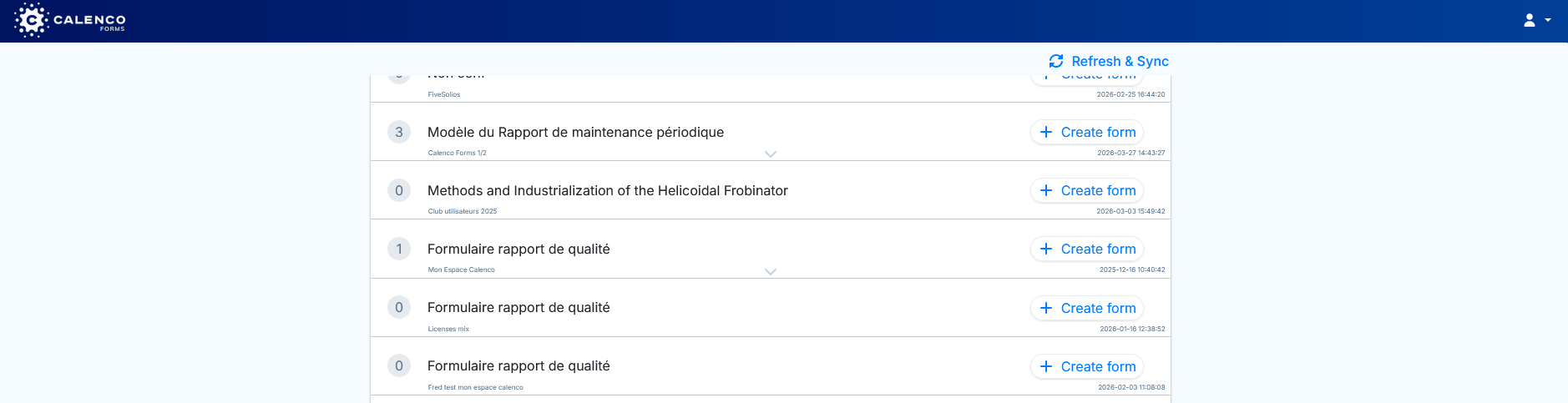
The button allows data to be synchronized between Calenco and the application.
The area of each model has the following information:
The label of the form template;
The button;
The date and time of the model activation on the right under the button;
The name of the workspace that stores this model, on the left under the model label;
The number of forms created with this model to the left of the label.
The created forms are displayed for each model by clicking on the grey arrow (see Edit a form in the web app).
The operator accesses the models and forms via the tags assigned to him by the customer account manager (seeAssign forms to operator).
Procedure 51. To create a form
Click the button by selecting the desired model from the list.
The form opens in a new tab.
Enter the necessary data.
![[Note]](cco-note.svg)
If the form contains more than one heading, use the button at the bottom of the page to return to the form's home page.
To save the entered data and generate a publication in Calenco (online mode), click on the button:
, if the form is partially completed and data entry is being considered at a later date.
The following message informs of a successful data synchronization between the application and Calenco:

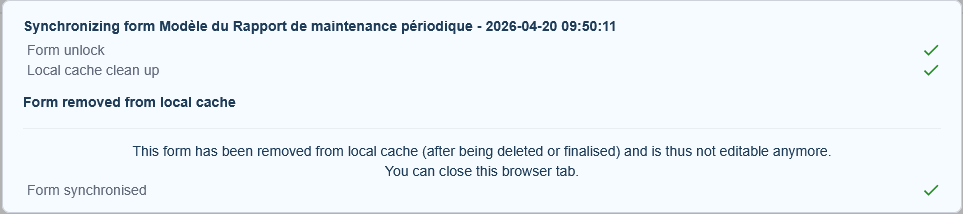
, if the data entry is finalized.
The following message informs that the data is synchronized with Calenco and the form is deleted from the application (local cache):
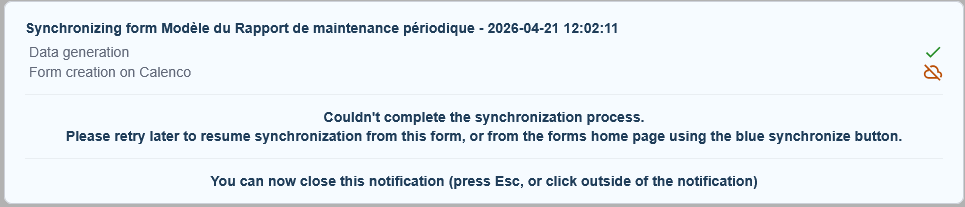
Using the buttons and in offline mode is limited to the following message:
To save the entered data locally (in the offline application), close the form tab. The entered data is automatically preserved.