5. Edit a form
The created forms are available for editing in:
Web application by operators, customer account managers and administrators;
Forms tab in Calenco by operators, customer account managers and administrators;
Documents tab in Calenco by customer account managers and administrators;
the context of a workflow by operators, customer account managers and administrators assigned to one or more tasks.
5.1. Edit a form in the web app
This access to the forms is available for Operators, Customer Account Managers and Administrators.
Click the gray arrow of the desired model to open the list of forms:
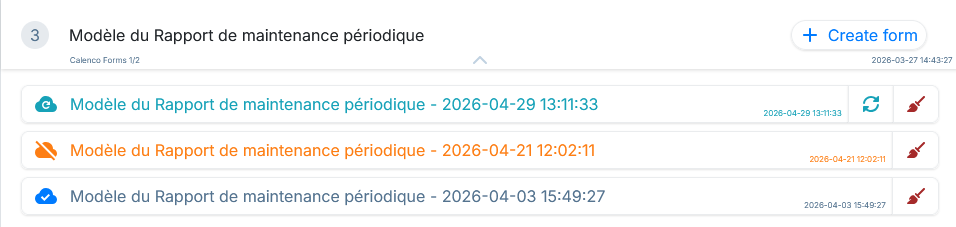
Each form has the following information:
its status (see below for description);
its label and (when hovering over the label) the user who created it as well as the name of the respective file in Calenco;
the date and time of its creation.
Forms in the web app can have three statuses:
 This form has not yet been synchronized with Calenco. Only its local version exists.
 Local changes have not yet been synchronized with Calenco.
 All local changes have been synchronized with Calenco.
The status message appears in the tooltip when hovering over the icon with the cursor.
Forms with local changes not synchronized with Calenco can be synchronized at any time with the  .
.
Any form can be cleaned up from local storage with the  . Any changes that have not been synchronized with Calenco will be lost.
Click in the area of each form to open it in editing.
![[Note]](cco-note.svg) | |
Completed Forms. Forms that have been completed in editing no longer appear in the web application. |
5.2. Edit a form via the Forms tab
This access to the forms is available for Operators, Customer Account Managers, and Workspace Administrators.
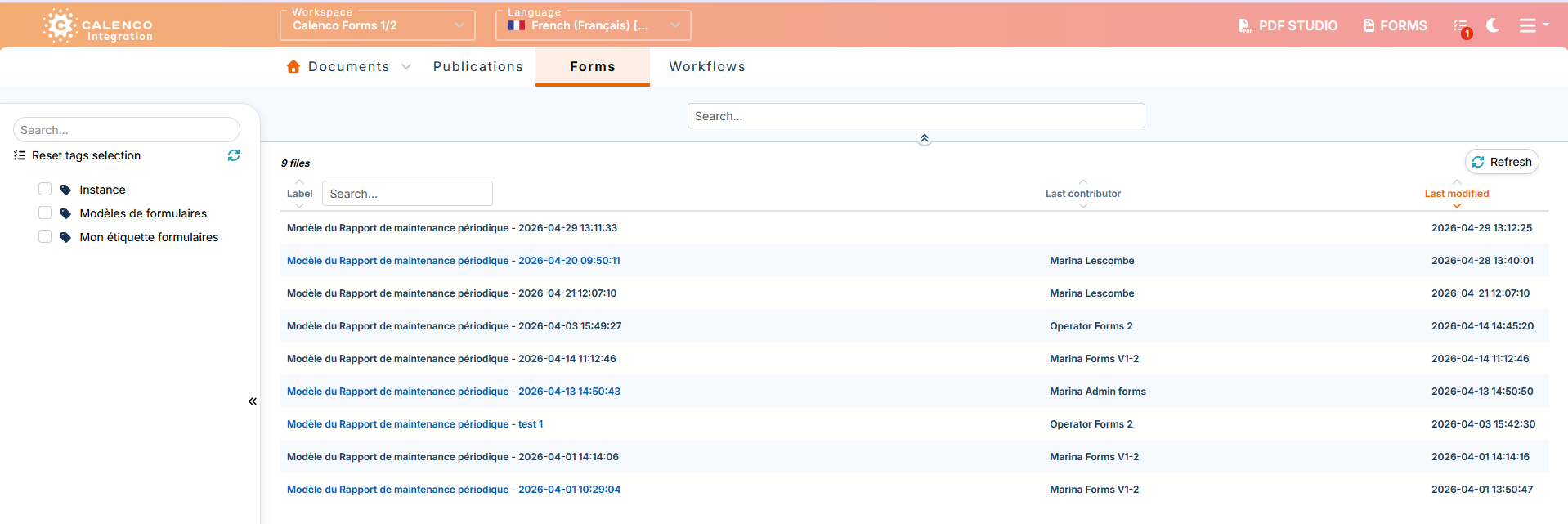
The Forms tab contains a list of forms based on the users' roles.
Forms in blue are clickable for opening in the web application.
Forms in black are not clickable because they are assigned to another user or locked in editing by another user.
![[Tip]](cco-tip.svg) | |
The list of forms can be filtered using the tags. |
![[Important]](cco-important.svg) | |
In order for operators to access the forms in the Forms tab, the customer account manager must assign the necessary tags to each operator (see Assign forms to operator). |
Operators can open the forms:
that they created through the web application and thus locked them on themselves;
that are assigned to them via the lock.
The workspace administrator and customer account manager access the full list of forms created on the Forms tab. They can open the forms:
locked on themselves;
which are assigned to them via the lock if applicable.
To open a form that is locked or assigned to another user, the workspace administrator or customer account manager must unlock it in the tab (see Procedure 53, “To unlock a form”).
5.3. Edit a form via the Documents tab
This access to the forms is available for Customer account managers and workspace administrators.
Forms that are completed in editing or synchronized while editing are stored in the Documents tab.
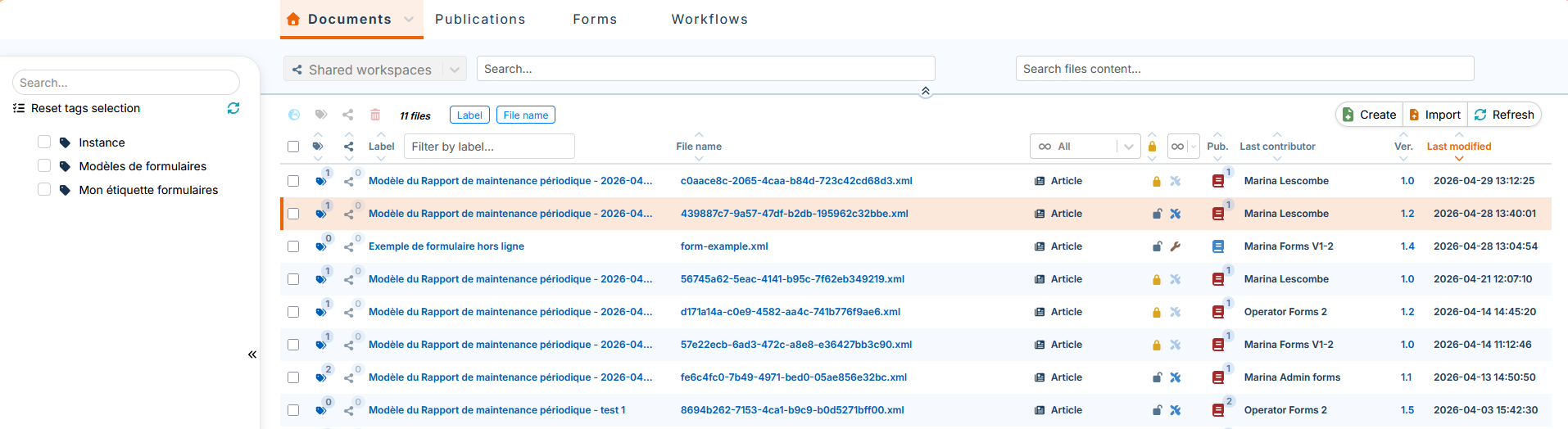
Opening a form for editing via the Documents tab is done via:
The
 button or
The button in the menu .
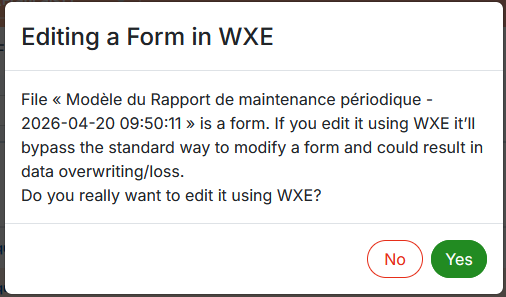
It is not recommended to edit forms in the xml editor (WXE). When you open a file, you will see the following message:
Forms with the bright orange padlock symbol  are assigned to a user or locked in editing by a user.
In order to open these forms for editing, they must be unlocked (see Procedure 53, “To unlock a form”).
5.4. Edit a form via a workflow
This access is available for users with all roles, if they are assigned to a workflow task(s).
They access their tasks via the button at the top right in Calenco .
.

Each row corresponds to a task, associated to the current workspace or not. The following information is available:
workflow name;
person who created the workflow;
Label of the form that allows access to the form for editing;
assigned task;
publications of the document (not accessible to operators);
The green checkmark to validate the workflow to move to the next step,
A completed and synchronized with Calenco form triggers the workflow to move to the next step.
The red cross to reject the task.
When the user rejects the task, the system offers to leave a comment (optional) before confirming the rejection.
When a task is assigned to several users:
The workflow returns to the chosen task if one of the users rejects it;
The workflow moves to the next step when all users have completed their task (unless the number of decisions defined is less than the number of users assigned to that task).
Affected users are notified by e-mail (see To adapt).
To create a workflow on a form, please see Assign a form via a workflow.